Cài Đặt Ứng Dụng Web-App (PWA)
Trải nghiệm eApp.vn mượt mà như một ứng dụng di động gốc. Truy cập nhanh chóng, tiết kiệm dung lượng, không cần tải qua chợ ứng dụng App Store hay CH Play.
Cài đặt trên iOS / iPadOS / Android
-
01
Truy cập ứng dụng
Mở trình duyệt web của bạn (ưu tiên sử dụng Safari trên iOS, hoặc Google Chrome trên Android) và truy cập vào ứng dụng được hỗ trợ.
-
02
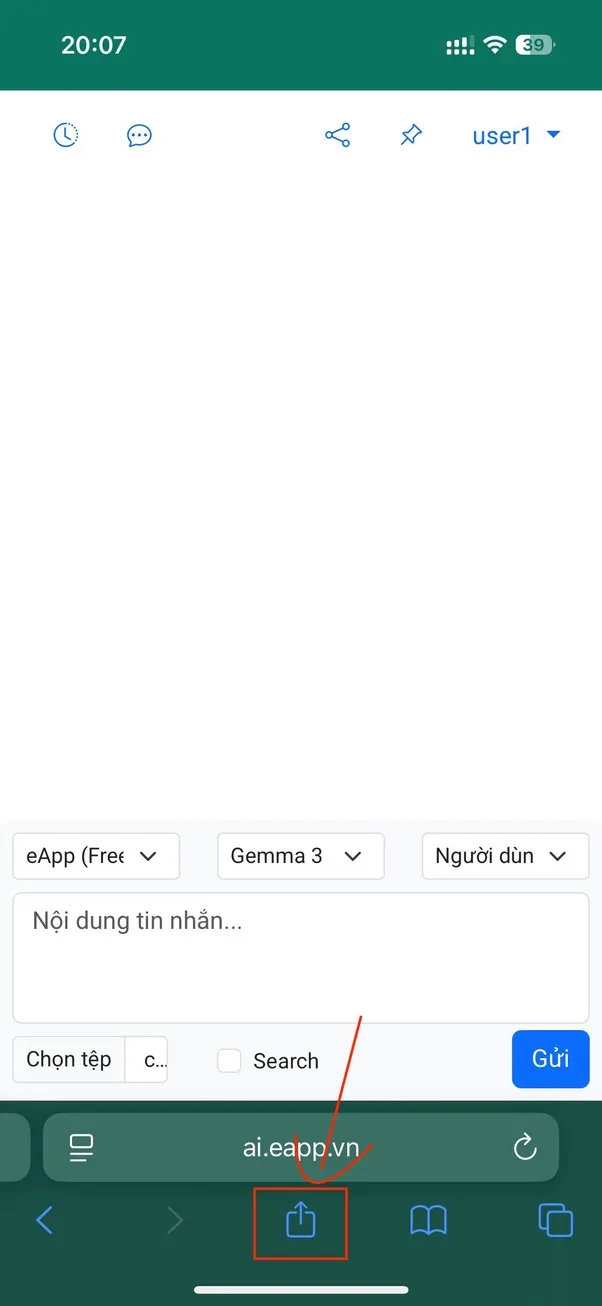
Nhấn nút Menu / Chia sẻ
Trên Safari, nhấn vào biểu tượng Chia sẻ (Share) ở thanh công cụ phía dưới. Trên Chrome, nhấn vào biểu tượng dấu 3 chấm Menu ở góc phải trên trình duyệt.
-
03
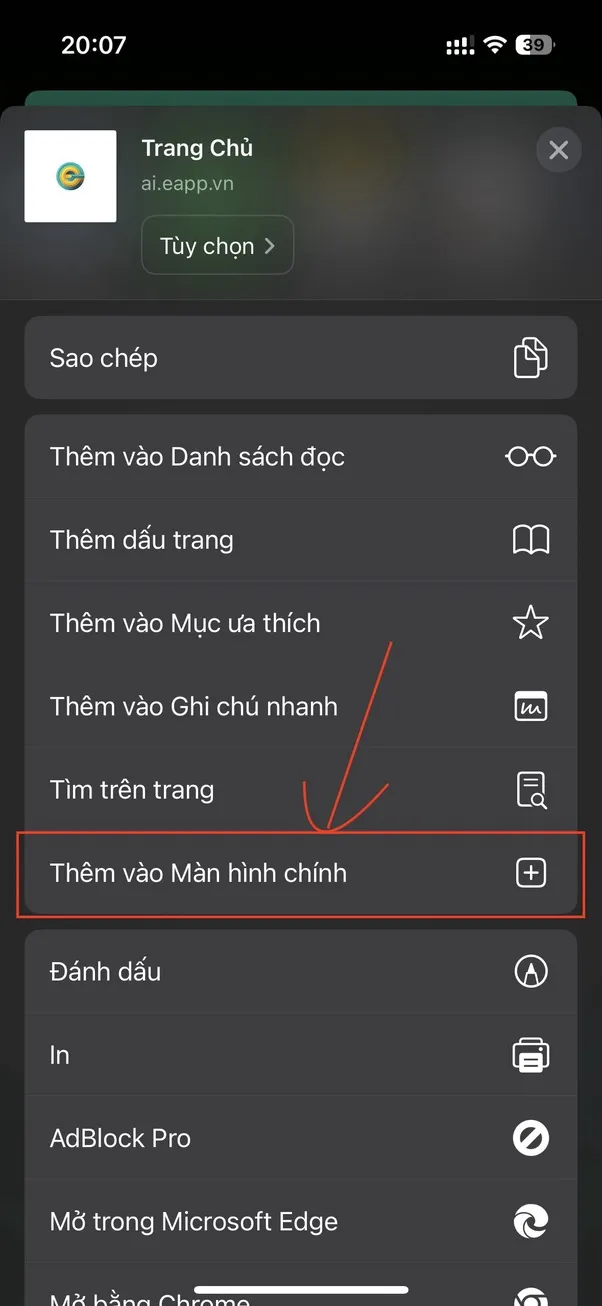
Thêm vào màn hình chính
Cuộn tìm và nhấn chọn mục Thêm vào Màn hình chính (Add to Home Screen) hoặc Cài đặt ứng dụng.
-
04
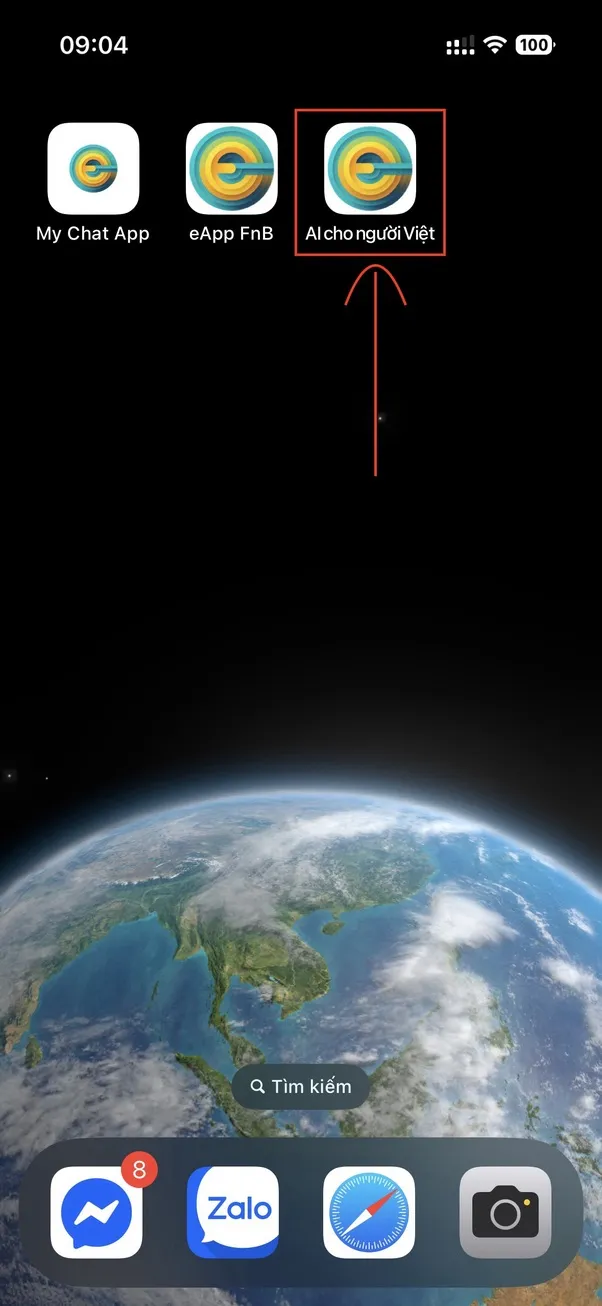
Hoàn tất cài đặt
Đặt tên hiển thị cho ứng dụng theo ý muốn và nhấn Thêm (Add). Biểu tượng app sẽ lập tức hiển thị trên màn hình chính thiết bị của bạn.
Cài đặt trên PC / Laptop Windows
-
01
Truy cập trên Edge hoặc Chrome
Sử dụng các trình duyệt lõi Chromium phổ biến như Google Chrome hoặc Microsoft Edge để truy cập vào địa chỉ eApp.vn.
-
02
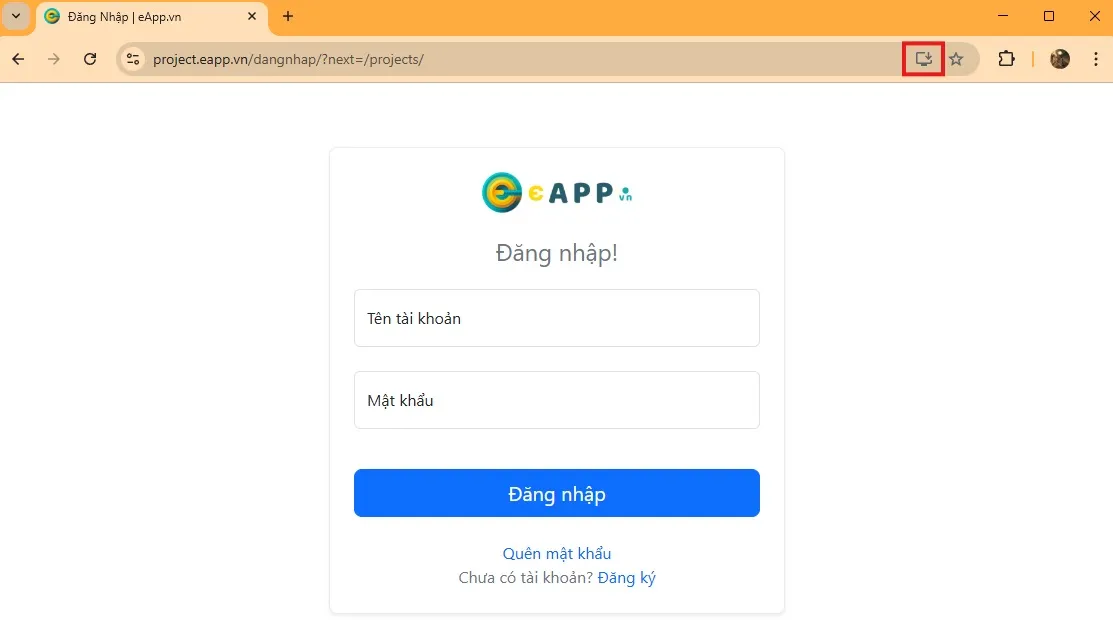
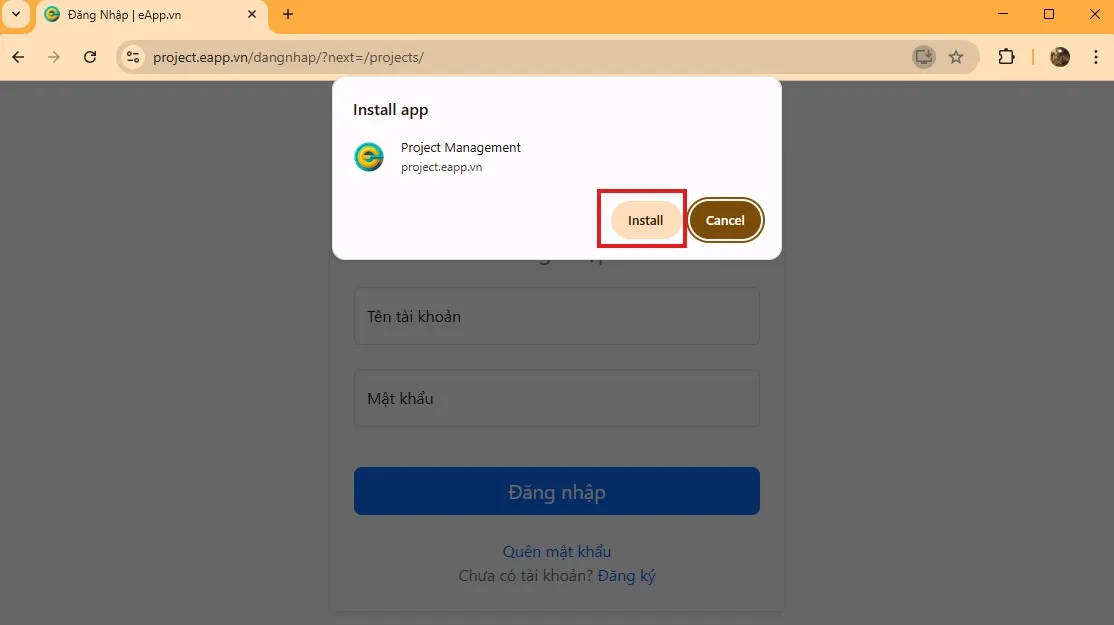
Nhấp vào biểu tượng Cài đặt
Quan sát góc phải của thanh địa chỉ (URL). Bạn sẽ thấy một biểu tượng hình màn hình máy tính có dấu cộng, hoặc biểu tượng 3 chấm ở góc trình duyệt.
-
03
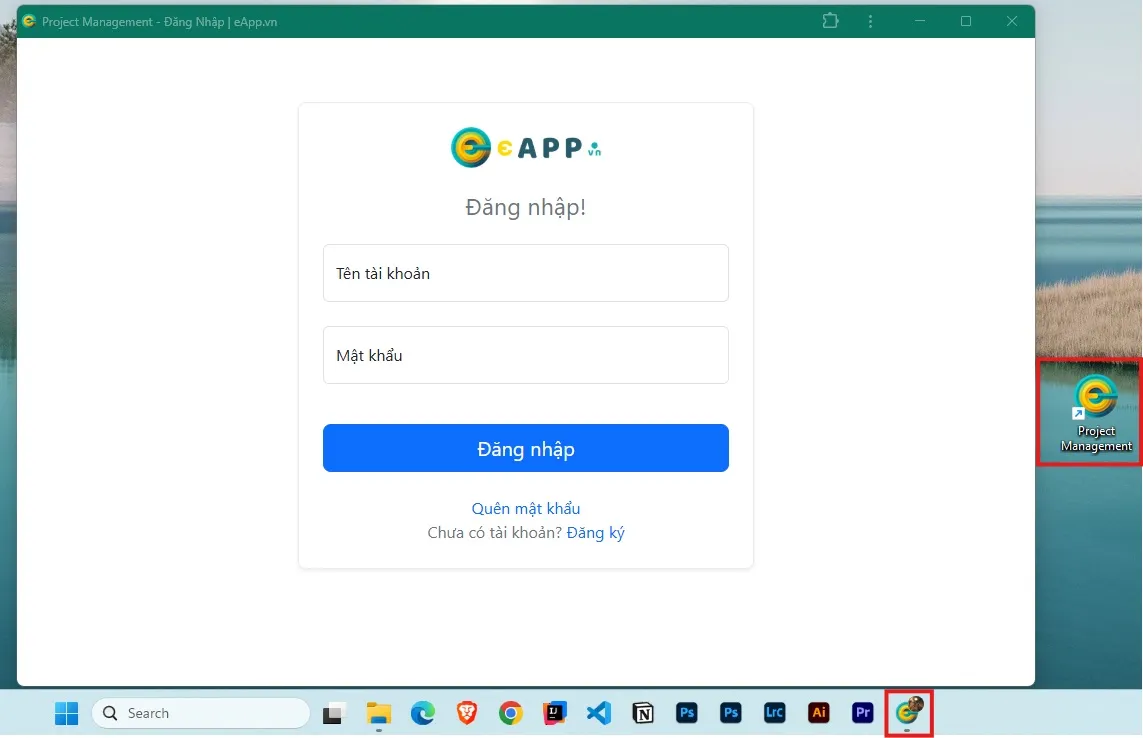
Xác nhận cài đặt
Nhấp chọn biểu tượng đó và chọn Cài đặt (Install). Ứng dụng sẽ tự động tải phiên bản PWA, tạo shortcut ngoài Desktop và ghim vào Start Menu / Taskbar.
Cài đặt trên MacBook (macOS)
-
01
Mở ứng dụng trên trình duyệt Safari
Khởi động trình duyệt Safari mặc định trên macOS và truy cập trang web ứng dụng.
-
02
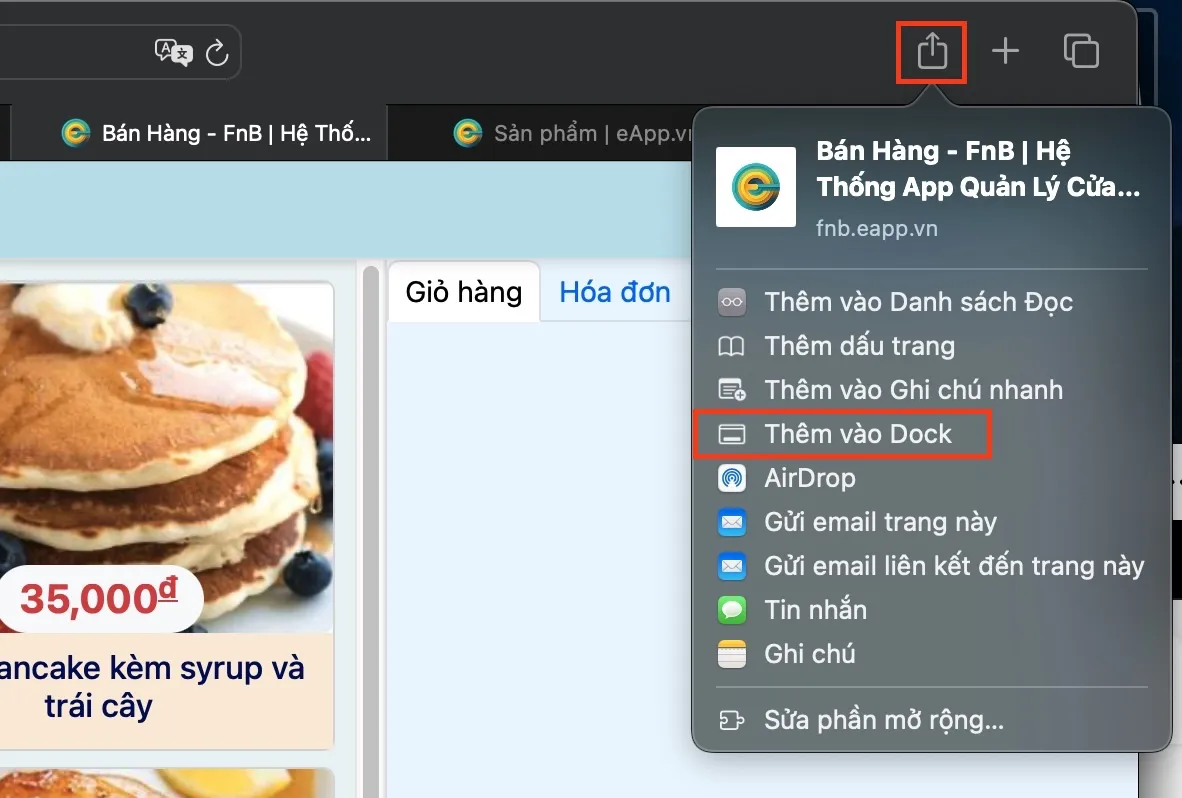
Chọn biểu tượng chia sẻ trên Menu
Nhấp chuột vào biểu tượng Chia sẻ (Share) ở phía trên góc phải của thanh công cụ Safari.
-
03
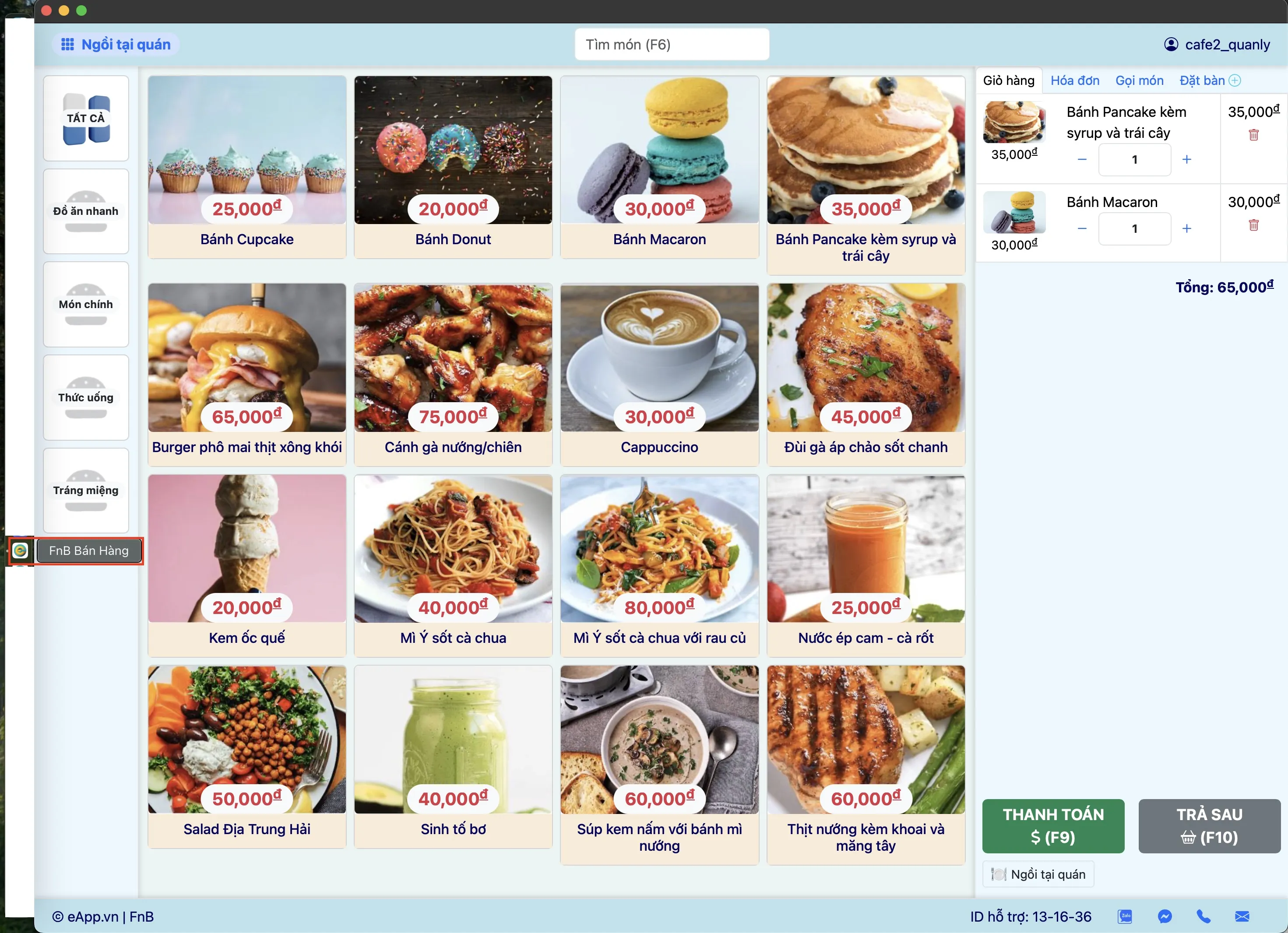
Thêm vào Dock thanh công cụ
Chọn tùy chọn Thêm vào Dock (Add to Dock) từ danh sách. Đặt tên hiển thị và nhấp thêm. Biểu tượng ứng dụng sẽ nằm cố định trên Dock máy Mac để mở nhanh bất kỳ lúc nào.

Lưu ý quan trọng:
Ứng dụng Web-App PWA sau khi được cài đặt sẽ hoạt động độc lập tương tự như ứng dụng gốc, không có thanh địa chỉ trình duyệt, lưu trữ cookie đăng nhập riêng biệt, tốc độ khởi động nhanh vượt trội và chạy hoàn toàn ngoại tuyến với các công cụ được lưu bộ nhớ đệm (cache).

